

Using YarpBot
This document is meant to be a guide to using the YarpBot website to configure YarpBot for your Twitch channel. By the end of this document you should have YarpBot in your chat answering questions.
Logging Into Yarpbot
The very first step to using YarpBot is to login to the YarpBot Website so that YarpBot knows who you are and has permission to interact with your chat. This login goes through Twitch OAuth; YarpBot never sees your Twitch Credentials. To login:
- Go to yarpbot.com
- Click the
Login With Twitchbutton on the top right - Go through the flow and authorize YarpBot
Once completed, you should be redirected back to yarpbot.com and now see your Twitch Profile Icon in the top right corner of the page.
Logging Out
If you want to log out of YarpBot, just click your Twitch Profile Picture in the top right hand corner of the site and hit Logout to logout of yarpbot.com.
The Dashboard
The Dashboard is where you will configure YarpBot, and can be accessed by opening the menu isung the menu button on the top left corner of the site and clicking Dashboard.
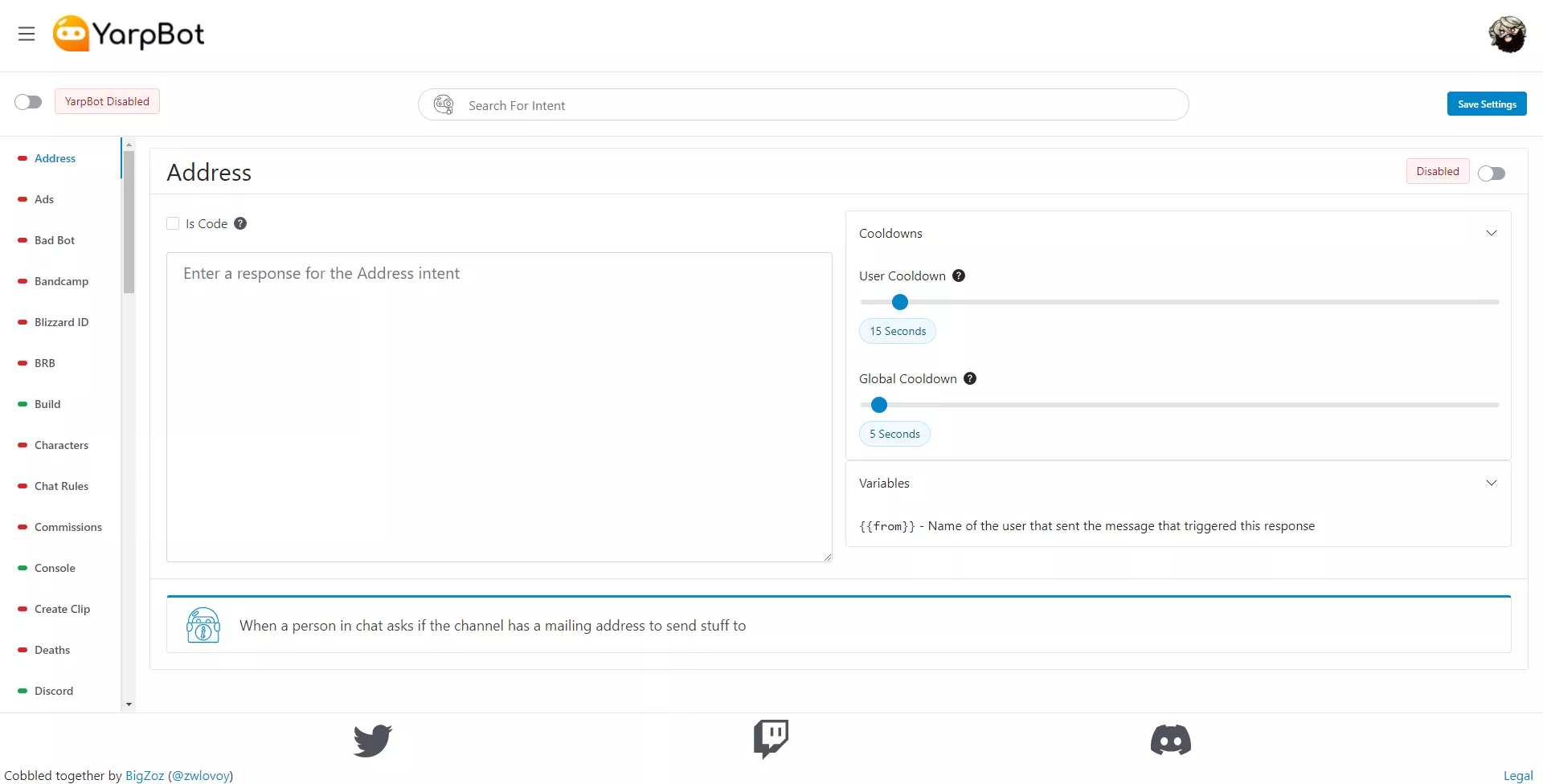
From here you are able to:
- Enable and Disable YarpBot in your Chat
- Enable and Disable specific Intents in your Chat
- Set the response for YarpBot for each Intent
Enabling YarpBot
The most important part of the Dashboard is the toggle for enabling and disabling YarpBot. When YarpBot is enabled, YarpBot will connect to your Twitch Chat and start processing messages. Enable YarpBot, just click the toggle on the left side of the page.

YarpBot will then connect and be ready to process messages.
Configuring Intents
Intents are the subject that YarpBot can respond to. When configuring YarpBot, you can configure as many or as few intents as you wish. To configure an Intent on Desktop, select an Intent from the list of intents on the left side.
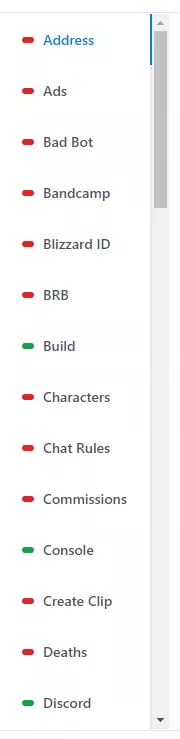
The indicator to the left of the Intent name shows if an Intent is enabled (green) or disabled (red). In addition, by hovering over an Intent, a tooltip will appear with a description of what that Intent does.

Desktop users can also use the Intent Search box to filter the list of intents based on their name.

On mobile devices, Intents will instead be listed in a dropdown at the top of the Dashboard. To select an Intent to configure, open the dropdown and select the Intent you wish to configure.
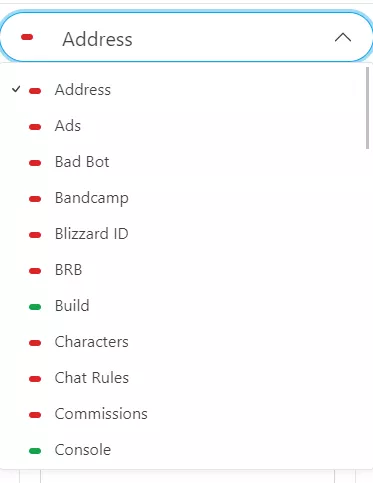
Once selected, the Intent will be ready to configure.
Enabling And Disabling Intents
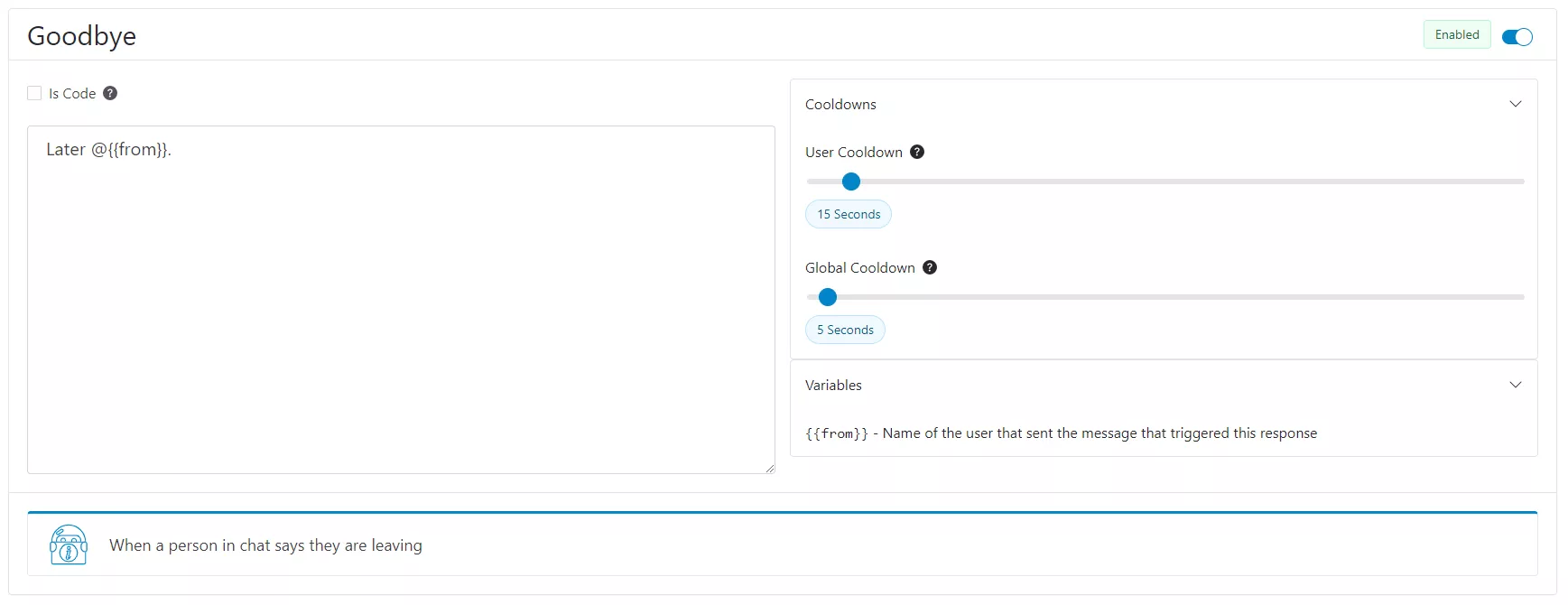
The first step in configuring an Intent is to Enable or Disable it. To set this, use the toggle on the top right of the Intent's card.

This will tell YarpBot to respond or not respond to this Intent.
Setting A Response
Once enabled, YarpBot needs to know what to say when an Intent is observed. To set this, enter text in the Intent Response box.

This can be a combination of Text, Emotes, and Variables.
Emotes
Just like any user on Twitch, YarpBot can use emotes in its responses. To have YarpBot use an emote, enter the text for it in your response. For example, use Kappa to use the Kappa emote. YarpBot has access to all Global Twitch Emotes as well as all of the YarpBot Channel's Emotes.
YarpBot can also use your channel's emotes if it has access to them. By gifting a channel subscription to YarpBot, YarpBot can use your channel's emotes in its responses!
YarpBot Emotes
YarpBot has a number of emotes attached to its channel that YarpBot can use in its responses.
YarpBot's emotes are made by talented artists and you should go check them out!
| Emote | Emote Name | Emote Artist |
|---|---|---|
 | yarpboHi | @KreutzArt |
 | yarpboOk | @KreutzArt |
 | yarpboWarning | @KreutzArt |
 | yarpboError | @KreutzArt |
 | yarpboHeart | @KreutzArt |
 | yarpboMad | @KreutzArt |
 | yarpboCry | @KreutzArt |
 | yarpboNotes | @KreutzArt |
 | yarpboNap | @KreutzArt |
 | yarpboMaitenance | @KreutzArt |
 | yarpboLenny | @KreutzArt |
 | yarpboAt | Charlie "sproutsnout" Davis |
 | yarpboBan | Charlie "sproutsnout" Davis |
 | yarpboRaid | Charlie "sproutsnout" Davis |
 | yarpoRgb | Aerlya Graphics |
 | yarpboWorking | sof_uhh |
Variables
Each Intent has one or more Variables that can be used in responses. These Variables will dynamically be converted to the proper value when YarpBot responds. To see the list of Variables, open the Variables section of the Intent card.

Variables will always be in the format of {{variableName}} and will vary per Intent.
Cooldowns
YarpBot also allows you to set Cooldowns on a per-Intent basis. To set cooldowns, use the Cooldowns section of the Intent card.
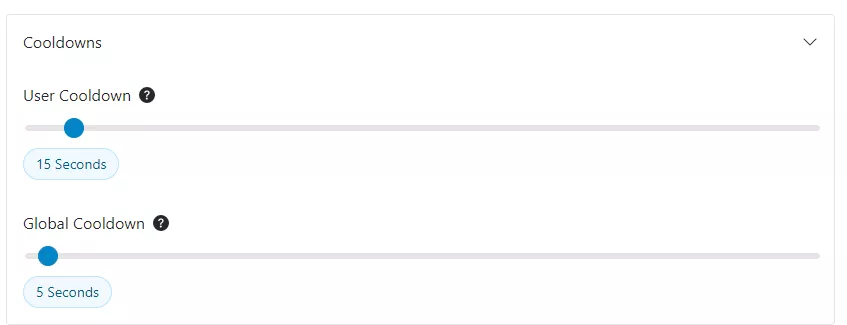
User Cooldown represents how often an individual user in Chat can trigger an Intent.
Global Cooldown represents how often any user in Chat can trigger an Intent.
Cooldowns can be set to any value between 0 seconds and 300 seconds.
YarpAi Rephrase
YarpAi Rephrase (Requires YarpBot+) is a premium feature that allows using ChatGPT to vary the response provided by YarpBot based on your default response.
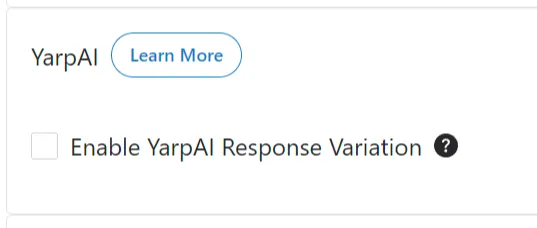
All you have to do is click the checkbox and Save Settings and as an additional step YarpBot's response will be re-processed if able.
Intent Details
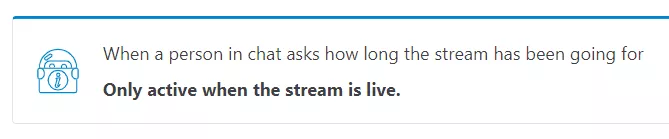
At the bottom of the Intent card there will be a description of the Intent so you know what exactly the Intent is looking for.

For Intents that are only available when a stream is live, this will also be mentioned here.
Code Responses
YarpBot has the ability to use JavaScript code as an input as opposed to a string. To enable this for an Intent, click the Is Code checkbox.

This will convert the response input to a Code Editor.
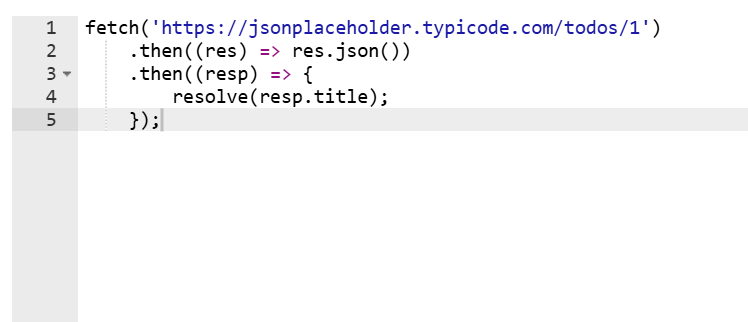
Using this editor, you can insert JavaScript code for YarpBot to run when an intent is detected. This block of code will be wrapped inside a JavaScript Promise that has a resolve and reject method in it. By returning a value inside the resolve method, YarpBot can say that value. Take this as a simple example:
Using this example, we combine the first two variables, put a space between them, and return the phrase "Hi Peoples!", which is then said by the bot. Now let's take a more complex example. Say you want to hit an API and return something. Well, you can use the fetch API to do something like this:
Cool, right? You can also use await syntax as well:
Code snippets also have access to intent variables. By using the same string syntax as in normal mode as part of your response, YarpBot will handle substituting the right values. For example, to use the {{from}} variable, do something like this:
Easy, right? Now some notes:
- This feature is in beta and there's bound to be a bug or 7 (tweet @yarpbot if you see some).
- There is a timeout of 5 seconds. If a piece of code takes longer than that to execute, it's errored out.
- All returned values through the resolve function are converted to Strings if they're not strings.
- While we here at YarpBot do our best to protect your data, there are risks to putting sensitive data in your code. We don't recommend putting stuff like passwords and OAuth tokens in there.
- The JavaScript runtime environment is based on ECMAScript and has the base functions of it available, as well as has an implementation of
fetchadded. No other libraries can be imported. - Aspects of this feature might change. Any changes will be announced on out Twitter.
- YarpBot will try its best to return an error if something goes wrong, but if there's an issue where we can't return something, then it will YEET it into space to not drag down performance, and you're just gonna have to live with it.
- If we notice you trying to do anything malitious / downright weird, you're super banned. Like 1 strike your out with no chance of appeal. YarpBot Management is neither fair nor patient.
All cool? OK; have fun.
Saving Your Settings
After configuring your settings, don't forget to SAVE! To save your settings, click the Save Settings button on the top right corner of the Dashboard.

Seriously, don't forget.