

Account
The account page allows you to edit settings about your YarpBot account.
Accessing The Account Page
To access the Account page, click the Menu button on the top right corner of the site and then click Account. Once there, the Account page should appear.
YarpBot+
The YarpBot+ section allows for management of your YarpBot+ subscription if you have one, and allows for subscribing if you are not yet subscribed. For more information on YarpBot+, check out the YarpBot+ article.
Managers
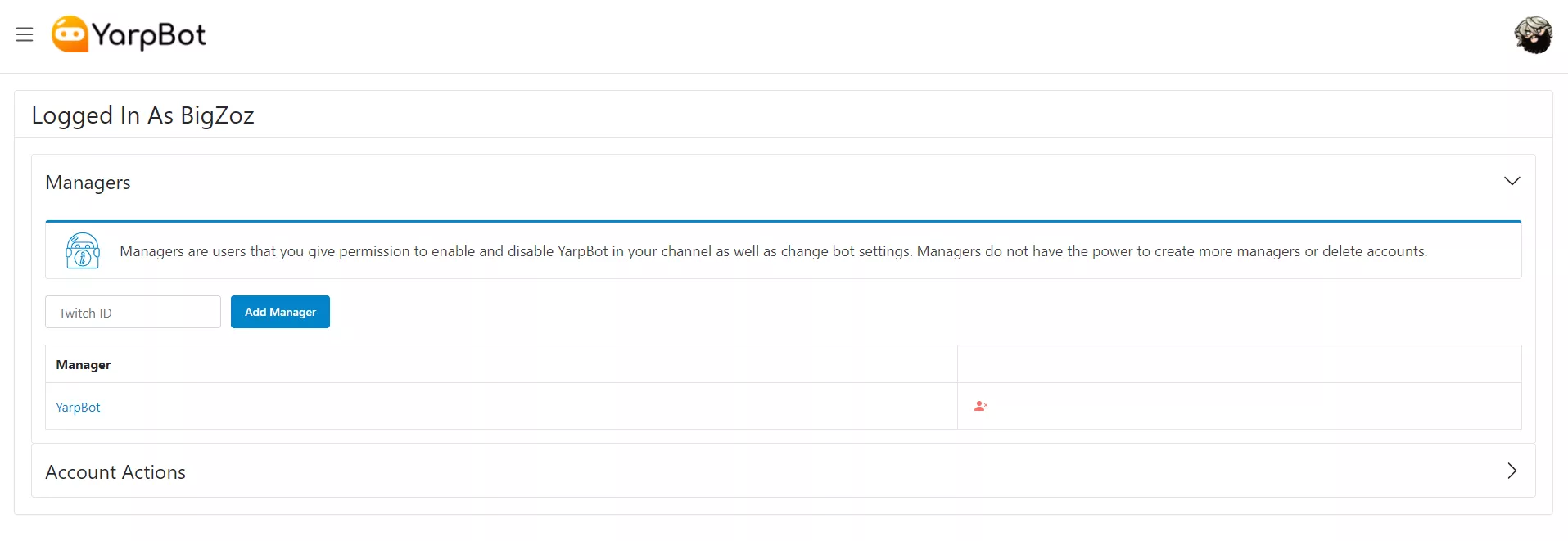
The Managers section allows you to give another Twitch User permission to log into yarpbot.com and set Intent settings for your channel.
Things a Manager CAN Do:
- Enable and Disable YarpBot
- Enable and Disable Intents
- Set Intent Responses
- View a channel's Feed
Things a Manager CANNOT Do:
- Add and Remove Managers
- Delete Accounts
Adding A Manager
To add a Manager, insert their Twitch ID into the Add Manager box and then click Add Manager.

Once added, the manager should appear in the Managers table.

Removing A Manager
To remove a Manager, click the Remove Manager button next to their entry in the Managers Table.

The Manager will then be removed.
Managing An Account
To Manage an account you have been granted permission to manage, open the account menu by clicking the Twitch Profile Picture in the top right of the site and if you have been granted Management permissions you should see a Managing section.
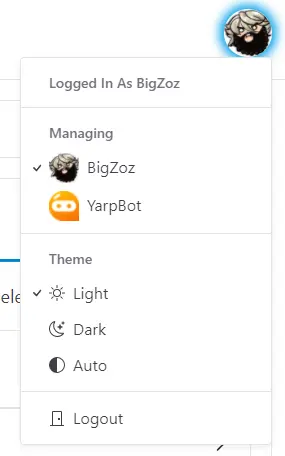
By clicking on the User you wish to manage, the top right will change the Profile Picture and show an indicator showing you are in Managing Mode.

You will then be able to operate the YarpBot UI as if you were that User.
Account Actions
The Account Actions section provides additional actions concerning your account.
Delete Account
If you ever feel like YarpBot isn't for you and you want to delete your account, this can be done using the Delete Account button.

From here you will be provided with a prompt asking if you wish to proceed.
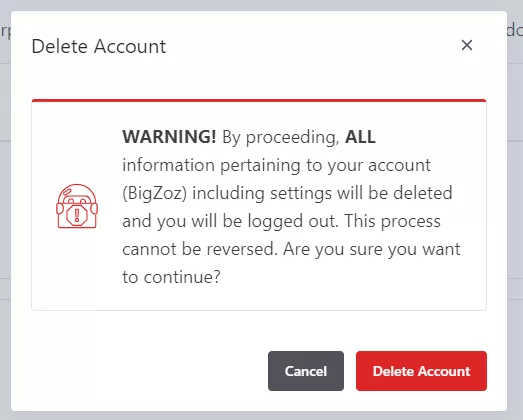
By clicking the Delete Account button on this prompt, all data concerning you will be deleted and you will be logged out.
!>When we say Delete Account, we MEAN IT. We will delete every trace of your account from the system and it's 100% unreversable. So make sure you REALLY want to do it before you do.